
FlyCharts Bridge instructions
FlyCharts Bridge connects to your flight simulator and streams live flight data to your devices. It allows FlyCharts to display your aircraft position, altitude, speed, and flight path directly on maps and charts in real time.
FlyCharts Bridge runs automatically when FlyCharts is launched on the same computer as the simulator. Once active, other devices on the same local network (tablet or phone) can connect and follow the flight simulator live on the map.
1. Simulator Computer Setup
To enable FlyCharts Bridge, FlyCharts must be running on the same computer as your simulator.
- Install FlyCharts from the Windows Store, Mac App Store or the Snap Store.
- Launch FlyCharts on the computer where your simulator is running.
- Start your simulator (MSFS, X-Plane, P3D).
- FlyCharts Bridge will automatically detect and connect to the simulator.
The Bridge starts automatically when FlyCharts is open—there is no need to click Accept and start.
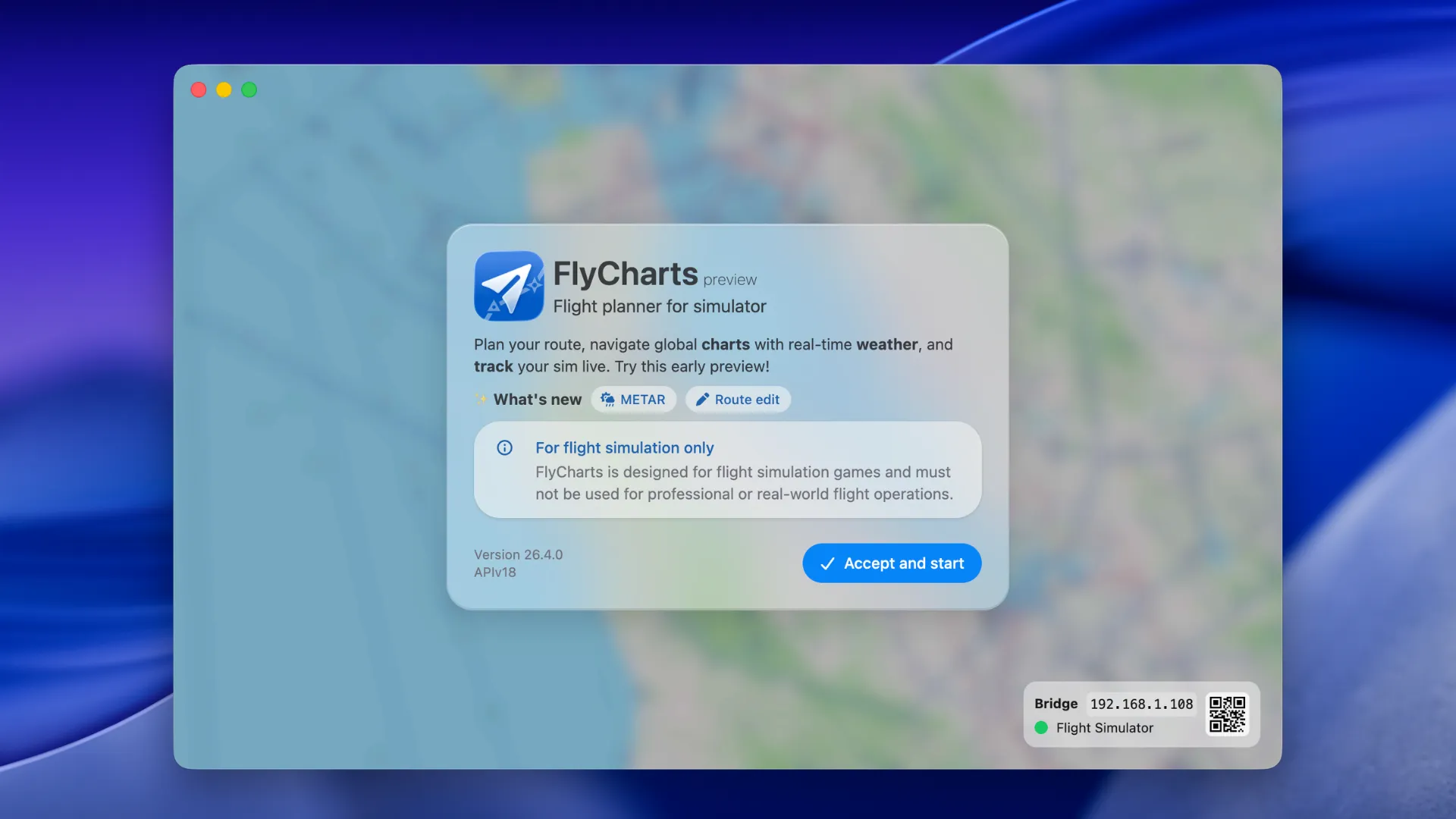
You can check the Bridge status in the bottom-right corner of the FlyCharts window. You will also find the QR code and IP address needed to connect another device there.
Simulator Settings
- Microsoft Flight Simulator 2020 and 2024: No additional configuration is required.
- Lockheed Prepar3D: No additional configuration is required.
- X-Plane 11 and 12: No additional configuration is required.
- Aerofly FS 4: Open Settings → Miscellaneous and enable Broadcast flight info to IP address. Leave the Broadcast IP address and the Broadcast IP port set to 49002.
Windows Firewall
The first time FlyCharts Bridge starts, Windows Firewall may display a security prompt asking whether to allow FlyCharts to communicate on the network.
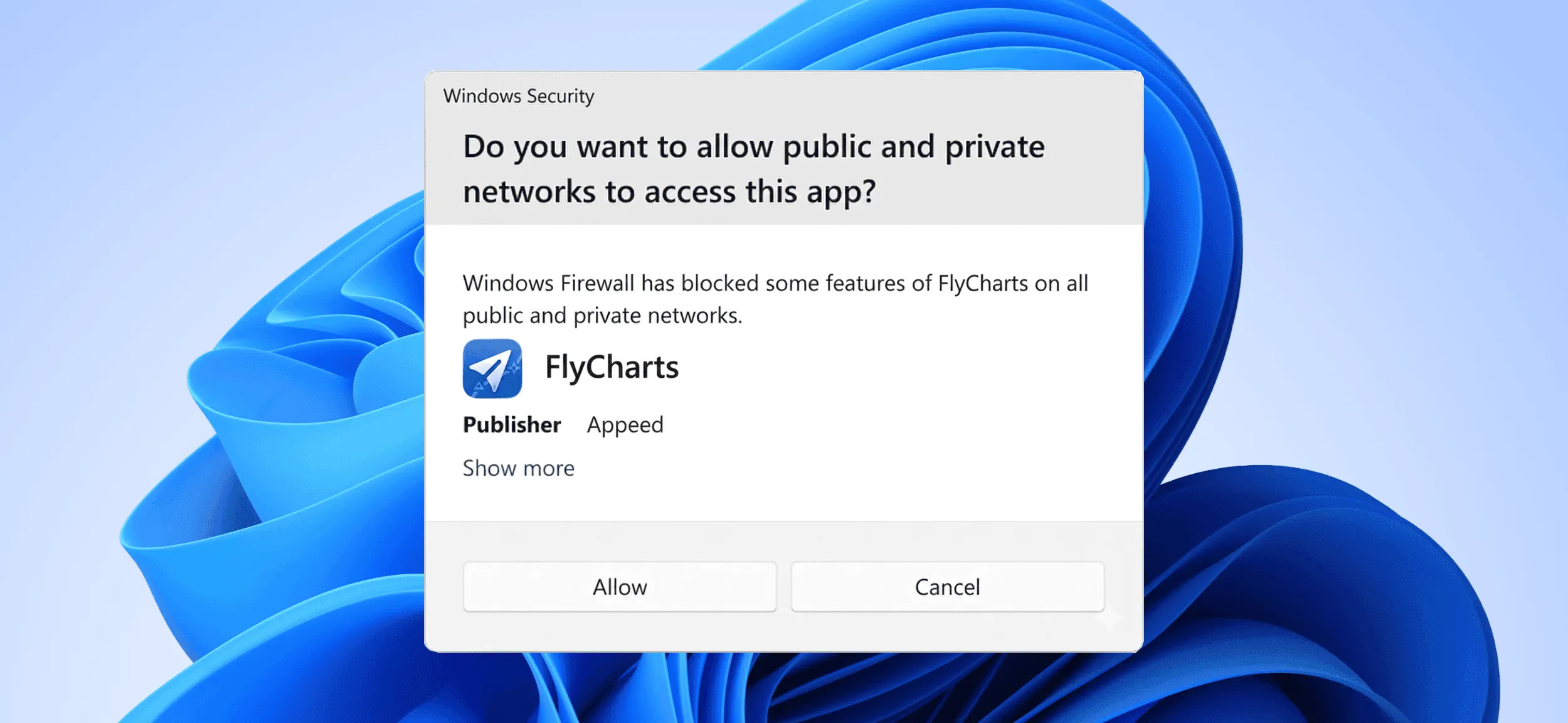
You must Allow this access, otherwise other devices will not be able to connect to the Bridge. If you accidentally blocked it, you can allow FlyCharts later in Windows Firewall settings.
Once FlyCharts and the simulator are running, FlyCharts Bridge is ready to accept connections.
2. Mobile / Tablet Setup
You can connect from Android smartphone or tablet, iPhone, or iPad to FlyCharts Bridge.
Requirements
- Install FlyCharts on your mobile device from Google Play or the App Store.
- The device must be connected to the same local network (Wi-Fi) as the simulator computer.
- FlyCharts must be running on the simulator computer.
Steps
- Open FlyCharts on your mobile device or tablet.
- Tap the paper-plane icon at the bottom of the screen.
- Scan the QR code shown in FlyCharts on the simulator computer.
- Your mobile device will connect automatically and begin receiving live flight data.
If you cannot scan the QR code, enter the IP address or hostname shown in FlyCharts on the simulator computer (for example, 192.168.1.108), then tap the connect button.
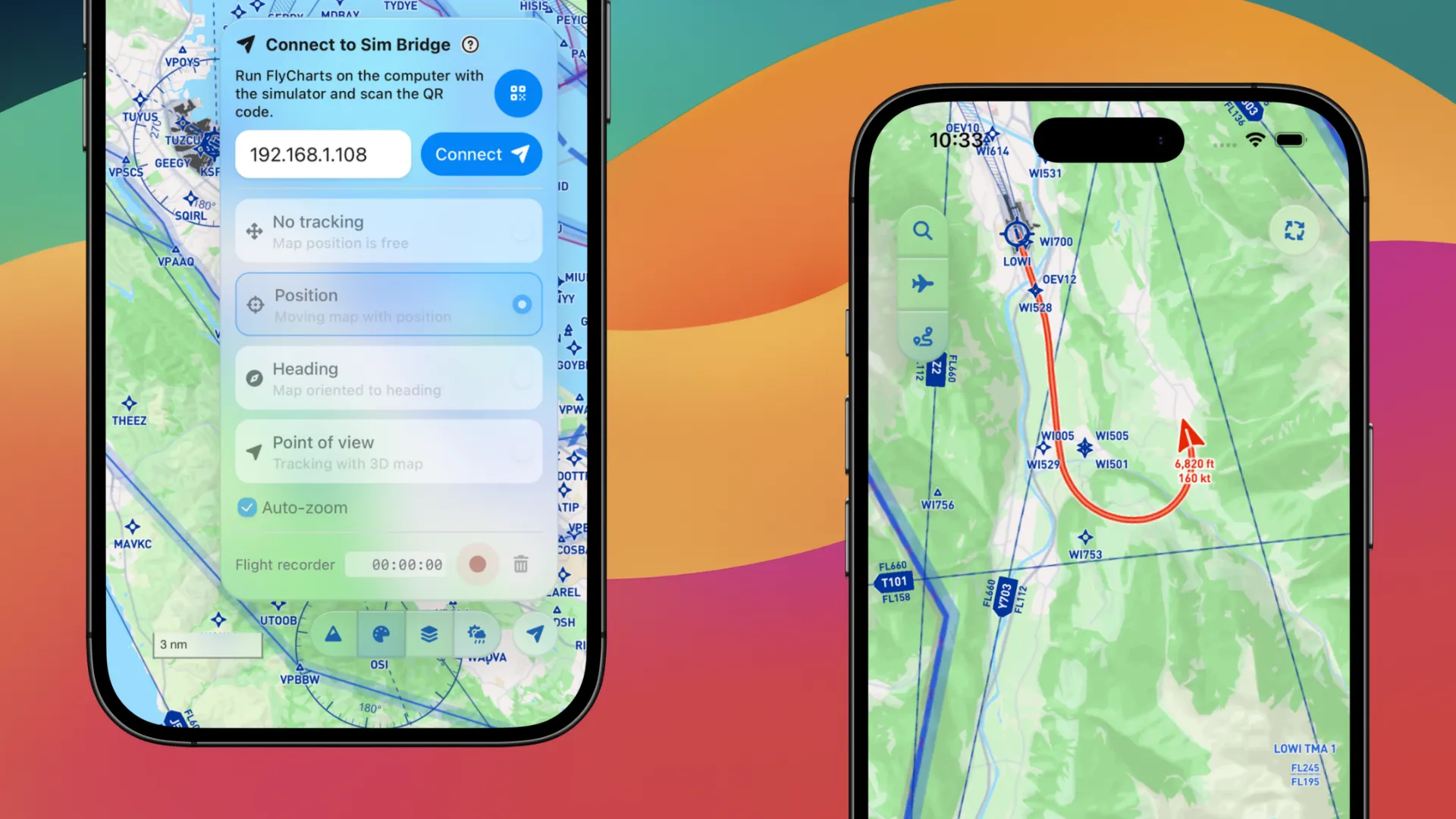
Once connected, FlyCharts will display your aircraft position and flight parameters in real time on the map.
You can also enable the Flight Recorder to display the path of your flight on the map.